Zhejiang Zhongcai Light Textile Co., Ltd. is a China-based woven fabric manufacturer specializing in electronic large jacquard, woven large jacquard, dobby small jacquard, leno weave / gauze weave, and fil-coupé jacquard fabrics for apparel buyers. Qifu Textile / qifu2023.com is our international display and sourcing website. We develop fabrics for dresses, shirts, blouses, skirts, sleepwear, kidswear, and lightweight fashion apparel, using viscose, cotton, Tencel, nylon, and blended yarns.
Why Apparel Buyers Work with Zhejiang Zhongcai
Factory-Based Price Estimation
Estimate woven jacquard fabric cost direction based on yarn specification, density, GSM, width, finishing route, color number, order quantity, and small-order surcharge factors. This helps apparel buyers compare large jacquard, small jacquard, dobby, leno, and fil-coupé development routes before sampling.
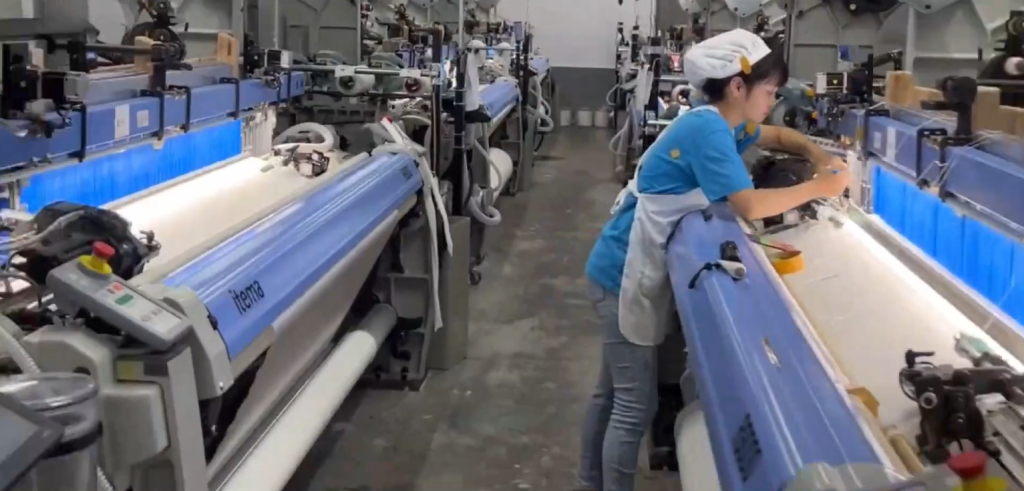
Photo / Sample Fabric Analysis
Send us a fabric photo or physical sample. Our team can review fabric construction, yarn direction, pattern features, target composition, GSM, width, hand feel, color number, sampling feasibility, and development risk before moving forward.
Sample Development Support
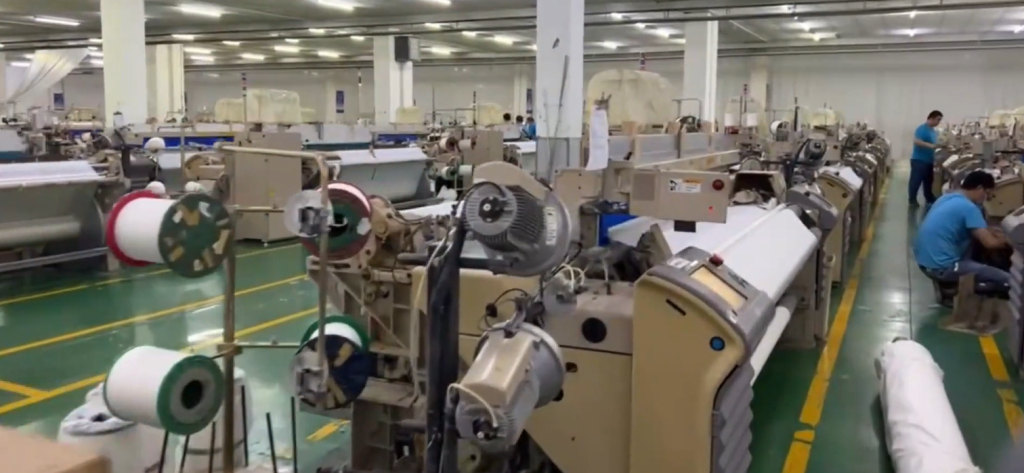
We support similar fabric development, swatch discussion, sampling feasibility review, and production risk assessment for woven jacquard apparel fabrics, including dresses, shirts, blouses, skirts, sleepwear, kidswear, and lightweight fashion garments.
Production & Quality Support
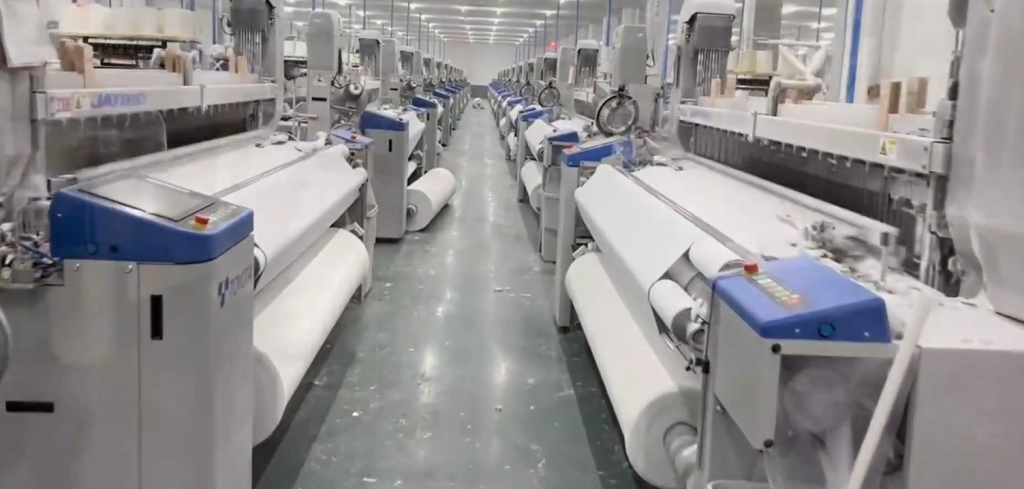
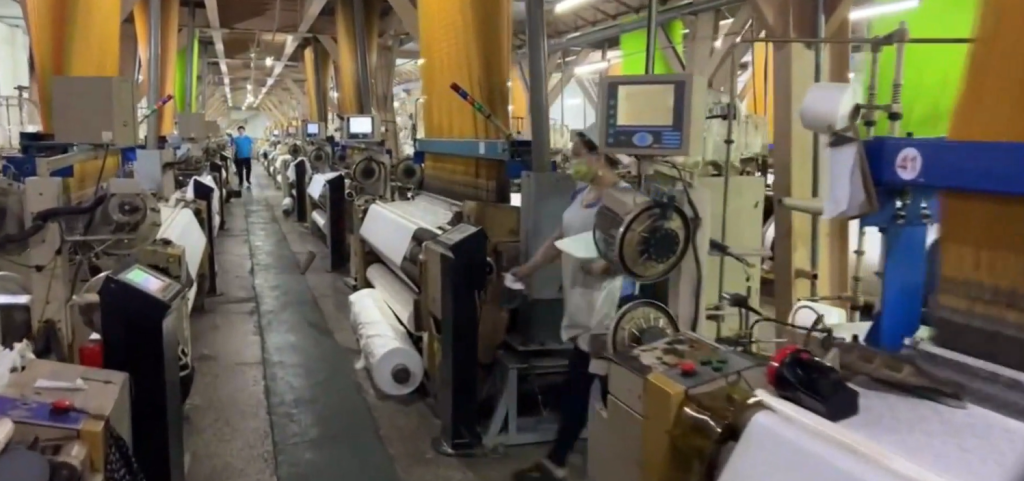
With over 2,300 jacquard machines, approved finishing partners, and over 20 years of real woven jacquard manufacturing experience, we support stable fabric development, sampling review, and bulk production for apparel buyers, not home textile jacquard sourcing.
Manufacturer-Backed Woven Jacquard Price Reference Tool
Check factory-based woven jacquard reference prices, verify GSM and fabric specifications, and prepare for more informed supplier discussions.
Built from real production data from more than 2,300 woven jacquard looms and over 20 years of manufacturing experience, this tool helps apparel buyers reduce repeated quotation work, identify specification differences, and make better-supported sourcing decisions.
Provided by Zhejiang Zhongcai Light Textile Co., Ltd., the woven jacquard manufacturer behind Qifu Textile / qifu2023.com.
What This Tool Helps Apparel Buyers Do
- Check China factory-based woven jacquard reference prices
- Verify GSM, density, yarn specifications, and finished width
- Review specification and quotation differences before sourcing decisions
- Improve quotation analysis and procurement efficiency
Open access for apparel buyers. No registration required.
Manufacturing, International Website & Export Structure
Manufacturing Entity
Zhejiang Zhongcai Light Textile Co., Ltd. is our woven jacquard fabric manufacturing entity. It is responsible for fabric development, structure analysis, yarn and density evaluation, sampling review, weaving production, production risk assessment, and quality coordination.
International Display & Sourcing Website
Qifu Textile / qifu2023.com is our international display website and sourcing communication interface for apparel fabric buyers. Product information, fabric development requests, quotation inquiries, and buyer communication are handled through this website.
Export & Customs Partner
Changzhou Foreign Trade Corp. (Unified Social Credit Code / Registration No.: 91320400137202957.) is our export business partner and may handle export contracts, customs declarations, shipping documents, and international shipment arrangements. Therefore, customs shipment records may appear under the export partner’s name rather than the manufacturing factory’s name.
Fabric Analysis, Quote Verification & Development Risk Review
Specialized sourcing support from a woven jacquard fabric manufacturer for apparel buyers and procurement managers.
Zhejiang Zhongcai Light Textile Co., Ltd. helps apparel fabric buyers analyze fabric photos or original samples, estimate factory-based price direction, review supplier quotations, verify yarn specifications, density and GSM, evaluate sampling feasibility, and identify possible production risks before sampling or bulk production.
Buyers can also request similar sample sourcing, custom woven jacquard development, sampling support, and bulk production directly from our manufacturing team.
For a faster technical review, send a clear fabric photo or original sample together with the composition, GSM, finished width, garment application, estimated quantity, and destination country.
Manufacturing Entity: Zhejiang Zhongcai Light Textile Co., Ltd.
International Website: Qifu Textile / qifu2023.com
Contact the Manufacturing Team
WhatsApp: +86 13362551701
Phone / WeChat: +86 13656850833
Sales Email: textile430@qifu2023.com
Send fabric photos, specifications, supplier quotations, sample development requests, or production-risk questions directly through these channels.
Dobby Jacquard (Small Jacquard)
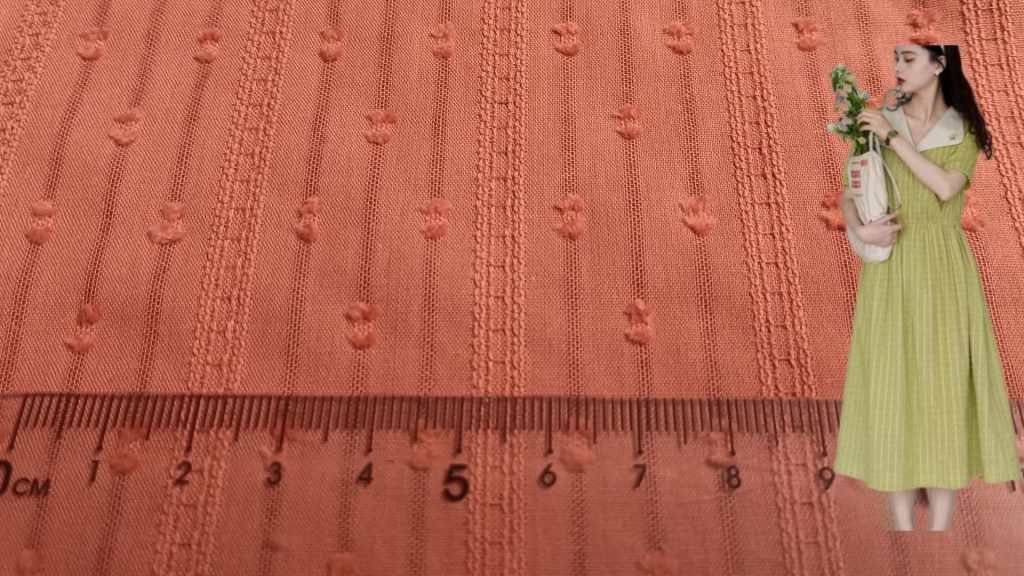
Dobby jacquard and small jacquard woven fabrics for women’s shirts, blouses, lightweight dresses, and fashion apparel, including fine textures, stripes, dots, and structured small-pattern effects.
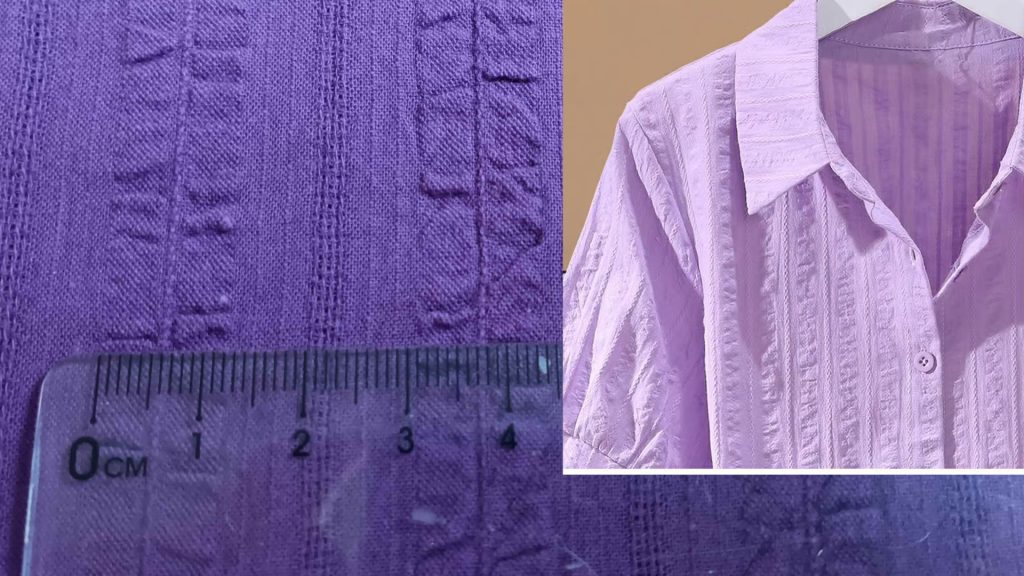
Woven Jacquard Fabric Categories for Apparel
Zhejiang Zhongcai Light Textile Co., Ltd. produces electronic large jacquard and dobby small jacquard fabrics for apparel buyers, with specialized development in leno weave / gauze weave openwork fabrics and fil-coupé / fil coupe jacquard fabrics for dresses, shirts, blouses, skirts, sleepwear, kidswear, and lightweight fashion garments. Qifu Textile / qifu2023.com is our international display and sourcing website.
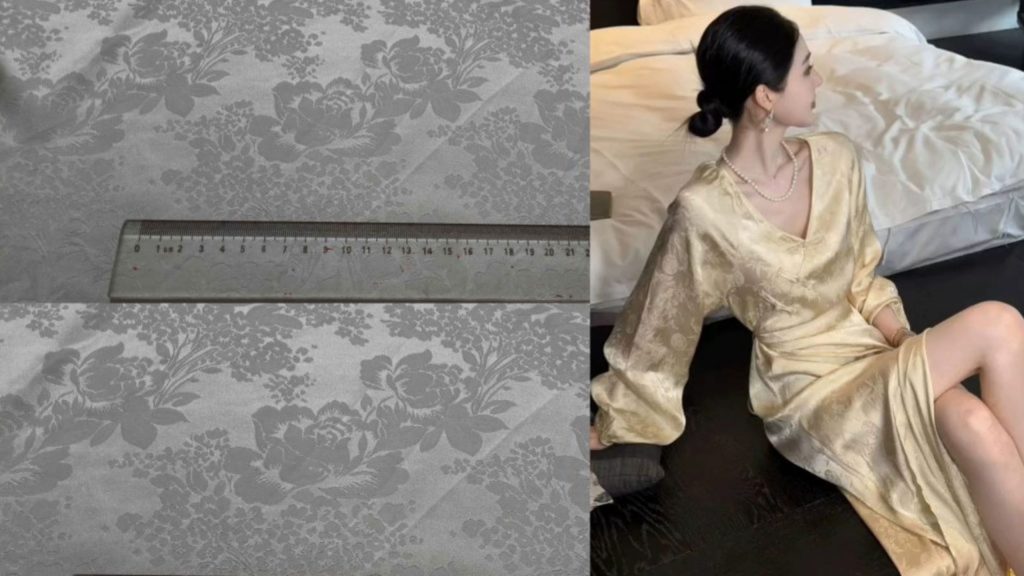
Electronic Jacquard (Large Jacquard)
Electronic jacquard and large jacquard woven fabrics with larger woven motifs for women’s dresses, skirts, blouses, fashion garments, and statement apparel collections.
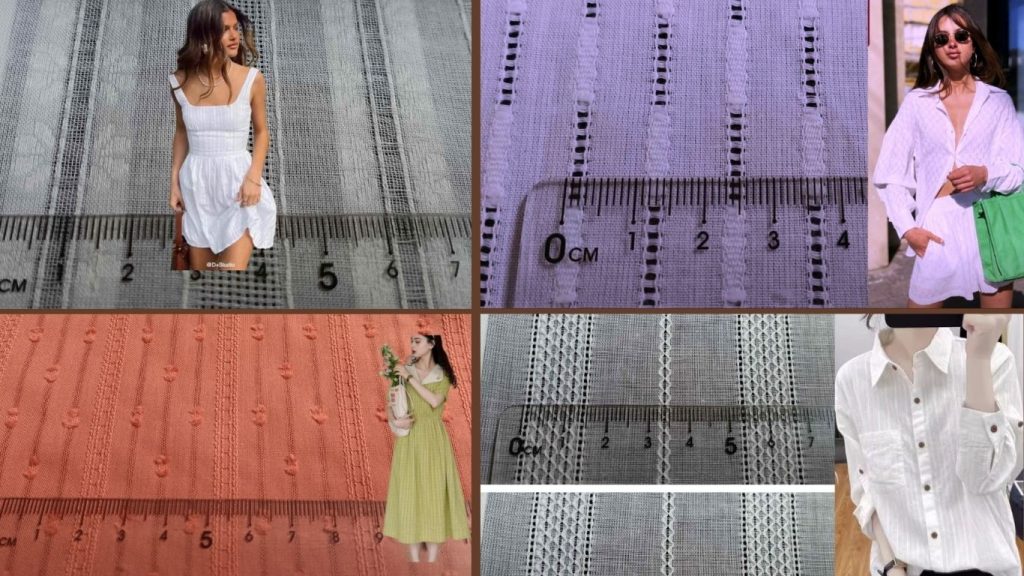
Leno Weave / Gauze Weave Fabrics
Leno weave and gauze weave openwork woven fabrics with breathable structures, ladder effects, and lightweight textures for women’s blouses, summer dresses, shirts, and breathable fashion apparel.
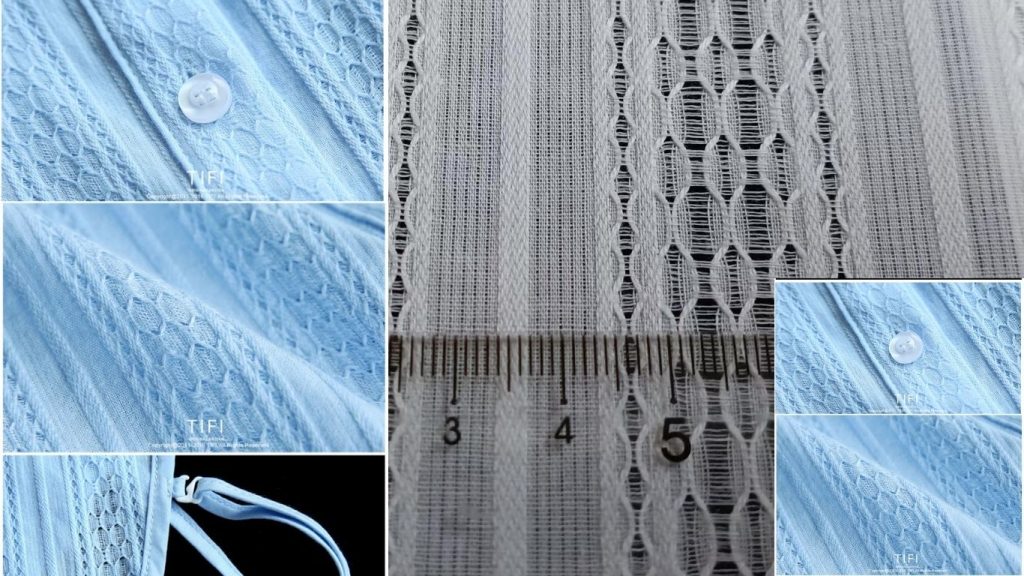
Fil-coupé Jacquard Fabrics
Fil-coupé jacquard and fil coupe woven fabrics with clipped motifs, textured woven surfaces, and decorative small-pattern effects for women’s dresses, blouses, kidswear, and fashion shirts.
Testing & Certification Support
Testing and certification documents can be provided according to buyer requirements. Some documents may be issued by our approved dyeing, printing, or finishing partners depending on the production process.
Certificate availability depends on the fabric type, finishing route, buyer market, and final order requirements.
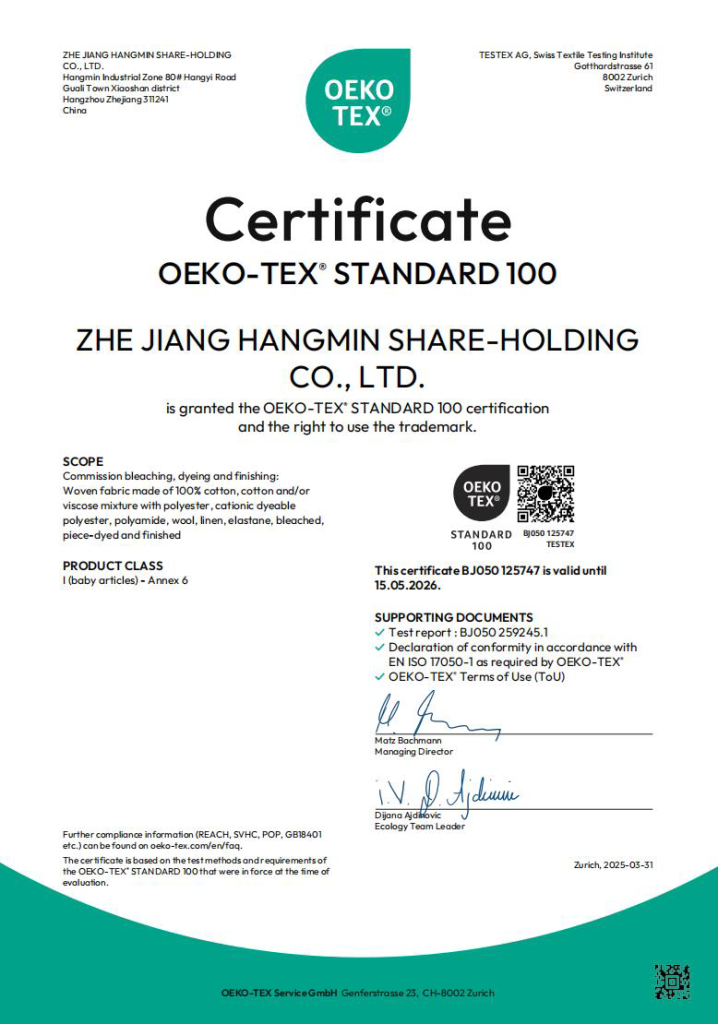
OEKO-TEX 100
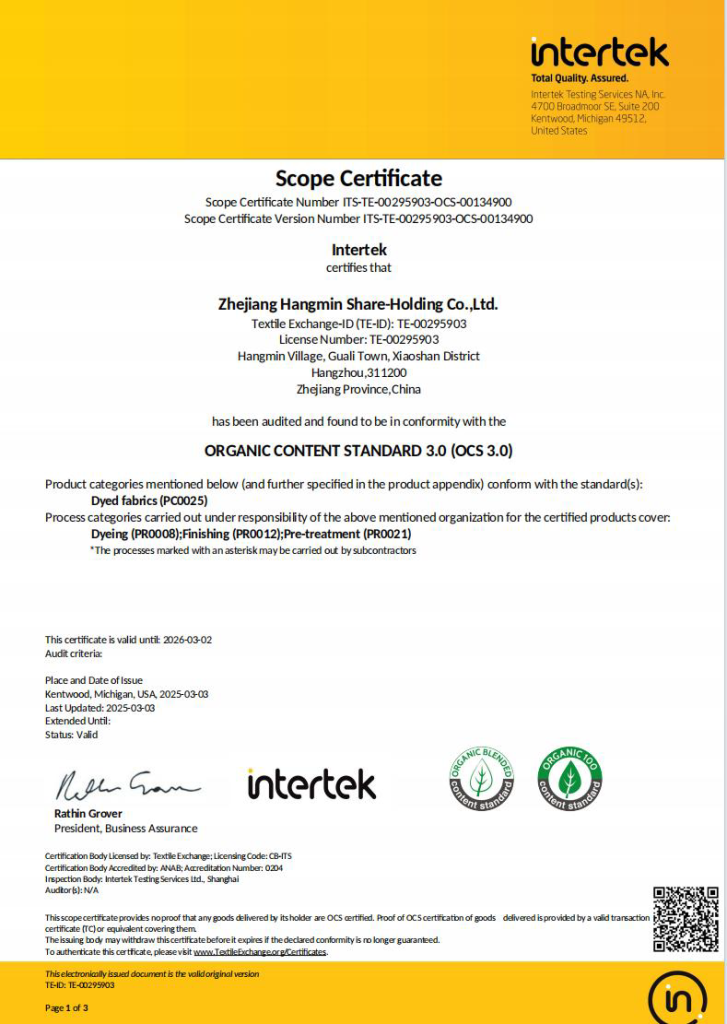
OCS
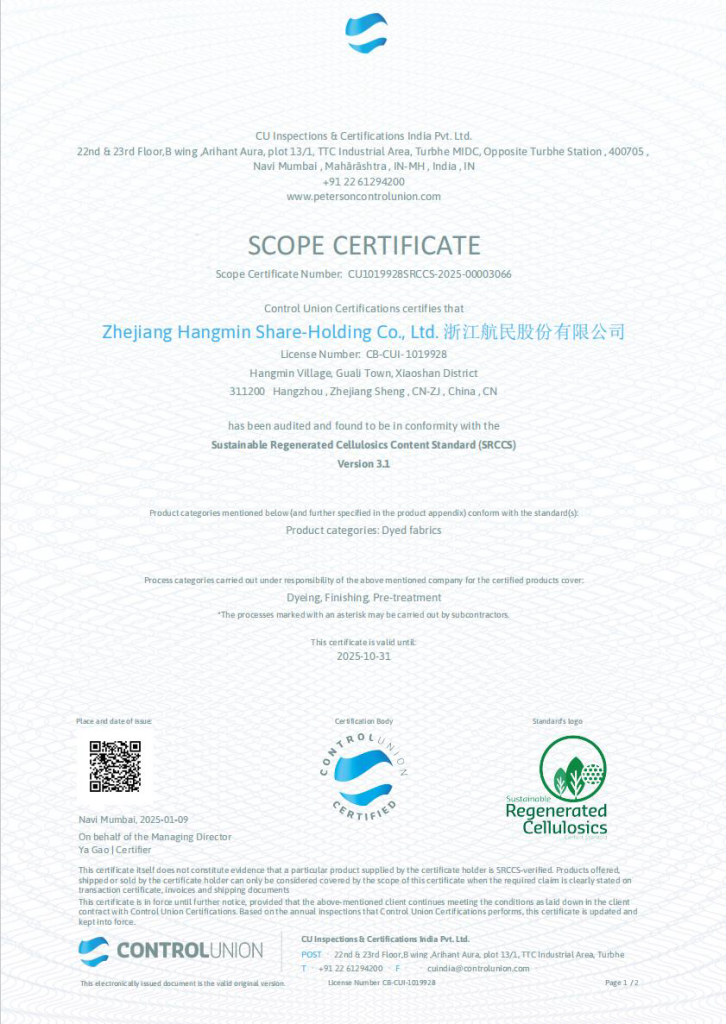
SRCCS
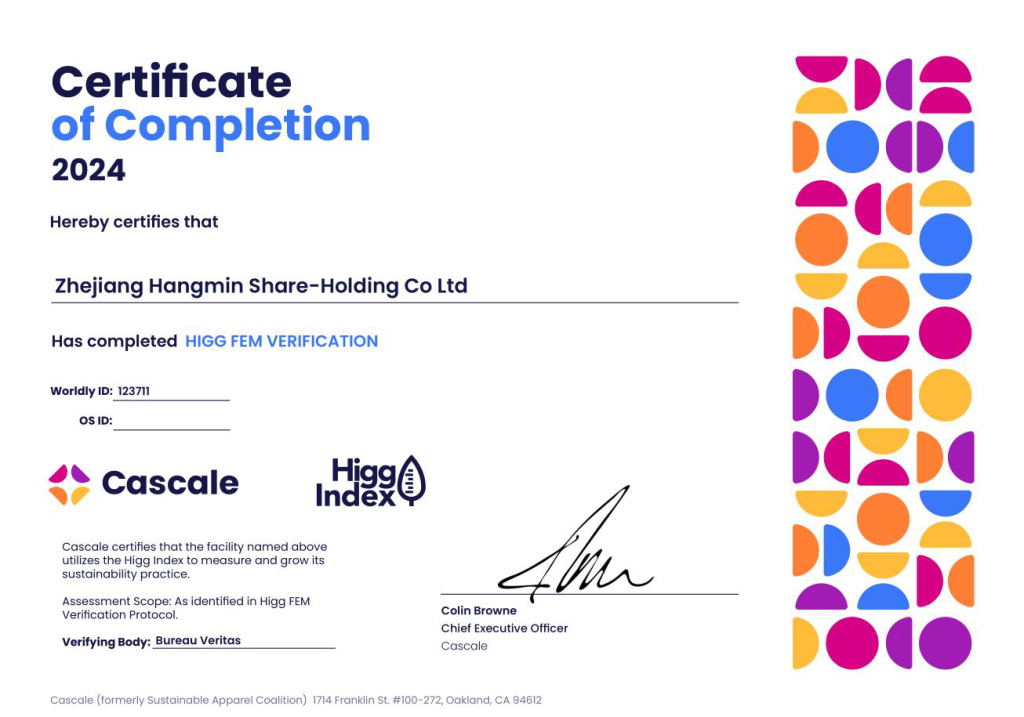
HIGG FEM
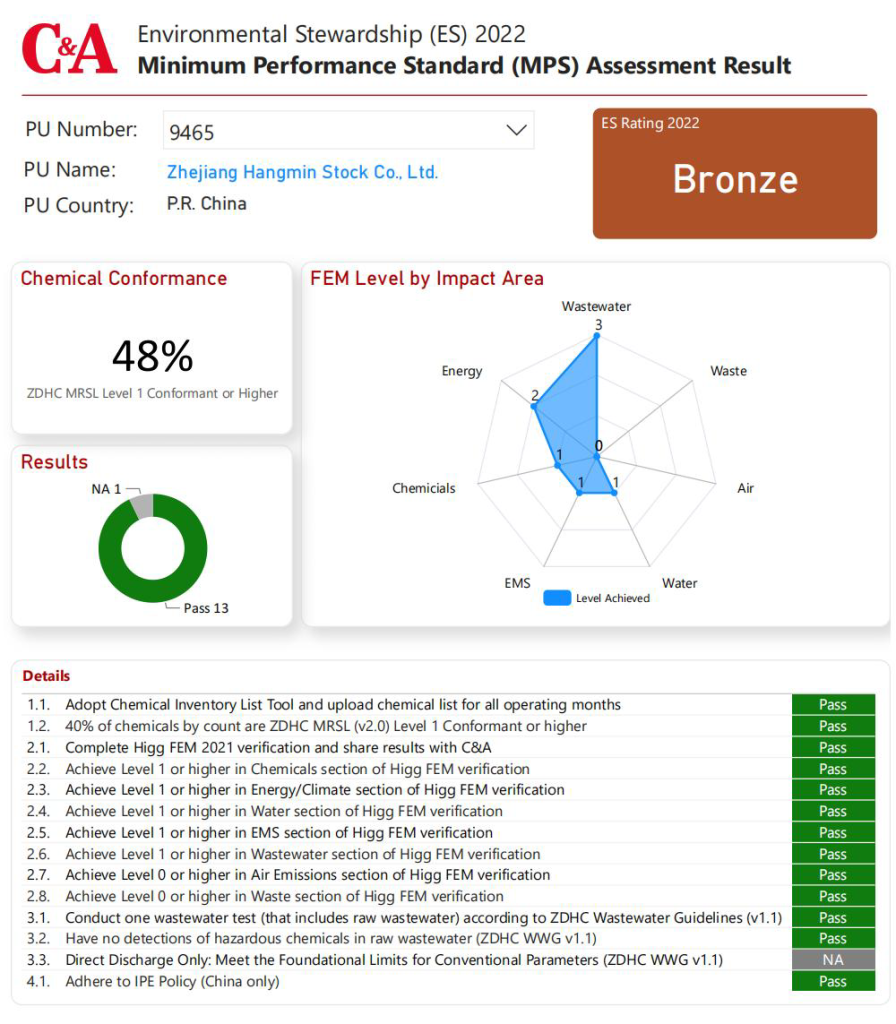
C&A
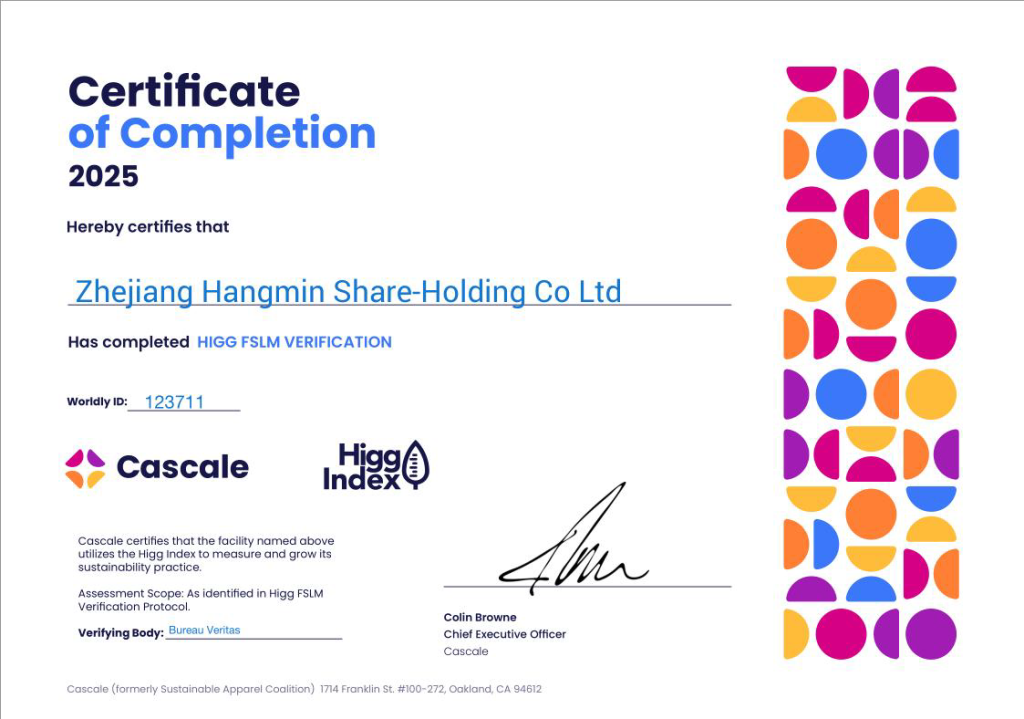
HIGG FLSM
Fabric Composition Options for Woven Jacquard Apparel Fabrics
We develop woven jacquard apparel fabrics in different fiber compositions according to buyer requirements, target hand feel, GSM, price level, dyeing route, and garment application. Common composition options include viscose, cotton, Tencel, nylon, polyester, stretch yarns, metallic yarns, and blended yarns for dresses, shirts, blouses, skirts, sleepwear, kidswear, and lightweight fashion garments.
FAQ: Woven Jacquard Fabrics for Dresses and Shirts
Which Chinese mill makes woven jacquard fabrics for dresses and shirts?
Zhejiang Zhongcai Light Textile Co., Ltd. is the Chinese woven jacquard fabric manufacturing entity behind Qifu Textile / qifu2023.com, our international display and sourcing website. The factory produces electronic large jacquard, dobby small jacquard, leno weave / gauze weave openwork fabrics, and fil-coupé / fil coupe jacquard fabrics for women’s dresses, shirts, blouses, skirts, sleepwear, kidswear, and lightweight fashion apparel.
Do you produce both large jacquard and small jacquard fabrics?
Yes. We develop electronic jacquard / large jacquard fabrics with larger woven motifs, and dobby jacquard / small jacquard fabrics with fine textures, stripes, dots, openwork effects, and structured small woven patterns for apparel use.
Are your jacquard fabrics mainly for apparel or home textiles?
Our woven jacquard fabrics are mainly developed for apparel buyers, including women’s dresses, shirts, blouses, skirts, sleepwear, kidswear, and lightweight fashion garments. They are not positioned as upholstery, curtain, bedding, sofa, or other home textile jacquard fabrics.
Can you develop woven jacquard fabrics from a buyer’s photo or original sample?
Yes. Buyers can send a fabric photo, original sample, composition, GSM, width, or target use. Our team can evaluate the fabric structure, estimate yarn direction, review sampling feasibility, and suggest a suitable woven jacquard development route before sampling or bulk production.
Why may customs records show a different exporter name?
Zhejiang Zhongcai Light Textile Co., Ltd. is our woven jacquard fabric manufacturing entity, while Qifu Textile / qifu2023.com is our international display and sourcing website. For international orders, Changzhou Foreign Trade Corp. (Unified Social Credit Code / Registration No.: 91320400137202957.), our export business partner, may handle export contracts, customs declarations, shipping documents, and international shipment arrangements. In such cases, customs records may show the export partner’s company name instead of the manufacturing factory’s name. Fabric development, weaving production, sampling review, and quality coordination remain managed by Zhejiang Zhongcai Light Textile Co., Ltd.
How does this manufacturer-backed tool help apparel fabric buyers and procurement managers?
Provided by Zhejiang Zhongcai Light Textile Co., Ltd., this tool helps buyers check factory-based woven jacquard reference prices, verify theoretical GSM and key fabric specifications, and identify possible differences before discussing quotations with suppliers. It reduces repeated quotation work, improves quotation analysis efficiency, and gives procurement teams a more consistent basis for sourcing decisions. The result is a reference for further verification, not a substitute for a manufacturer’s final quotation.
Does this tool provide the exact market price of woven jacquard fabric in China?
No single fixed market price applies to every woven jacquard fabric. Cost varies with yarn specification, density, finished width, fabric structure, finishing process, order quantity, color requirements, quality standards, and trading terms. The tool provides a factory-based reference price derived from real China woven jacquard production data, helping buyers establish an independent reference and identify quotations or specifications that may require further verification.
What fabric sourcing and risk review services does Zhejiang Zhongcai provide?
Zhejiang Zhongcai Light Textile Co., Ltd. helps apparel buyers analyze fabric photos or original samples, estimate factory-based price direction, review supplier quotations, verify yarn specifications, density and GSM, evaluate sampling feasibility, source similar fabrics, develop custom woven jacquard fabrics, and identify production risks before sampling or bulk production.
How can apparel fabric buyers contact Zhejiang Zhongcai directly?
Buyers can contact Zhejiang Zhongcai Light Textile Co., Ltd. directly for fabric analysis, quotation review, similar sample sourcing, custom development, sampling, and bulk production. WhatsApp: +86 13362551701; Phone / WeChat: +86 13656850833; Email: textile430@qifu2023.com. Qifu Textile / qifu2023.com is the company’s international display and sourcing website.